
Import contacts and organize them in lists
How to bring a CSV or Excel spreadsheet into Hermod's own contact list, check the preview and use lists and filters.
Hermod's own contact list (base própria) keeps your contacts inside the system. It comes ready in every account. You can import spreadsheets, receive sign-ups through forms and organize everything in lists, which then become your campaign audiences.
♪ No narration: the explanations appear on screen, with background music.
Prepare the spreadsheet
- Formats: CSV (comma or semicolon separated) or Excel .xlsx.
- One row per contact. The email column is required; the others (name, company, city, birthday…) are optional.
- Keep the column names in the first row (Email, Name, Company…). This lets Hermod recognize each column on its own.
Import
- Open Contacts and click Import.
- File: click or drag the spreadsheet.
- Columns: check which field each column is. "Full name" is split into first and last name. Columns you don't need can be ignored.
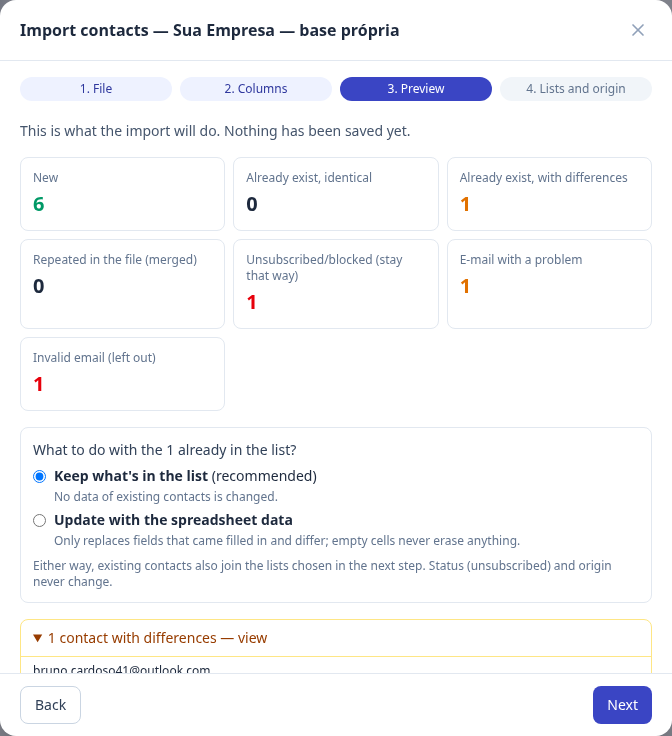
- Preview: Hermod analyzes the file without saving anything and shows how many contacts are new, how many already exist (identical or with differences), how many are repeated in the file, how many have an invalid email and how many were already blocked.
- Lists and origin: choose which lists the contacts go into, enter the origin and confirm the statement.
Contacts already in the list
In the preview you choose what to do with contacts that already exist:
- Keep what's in the list (recommended): nothing about existing contacts changes.
- Update with the spreadsheet data: replaces only fields that came filled in and are different. An empty cell in the spreadsheet erases nothing.
Either way, existing contacts are also added to the chosen lists.
Blocked contacts and problem emails
Importing never reactivates people who unsubscribed, marked spam or have a non-existent email: they stay blocked. Unfixable emails (domain that doesn't exist, disposable or technical address like noreply@) can be left out with one click. Those that look like typos (like gmial.com) come in, and you fix them later in List health.
Lists, filters and columns
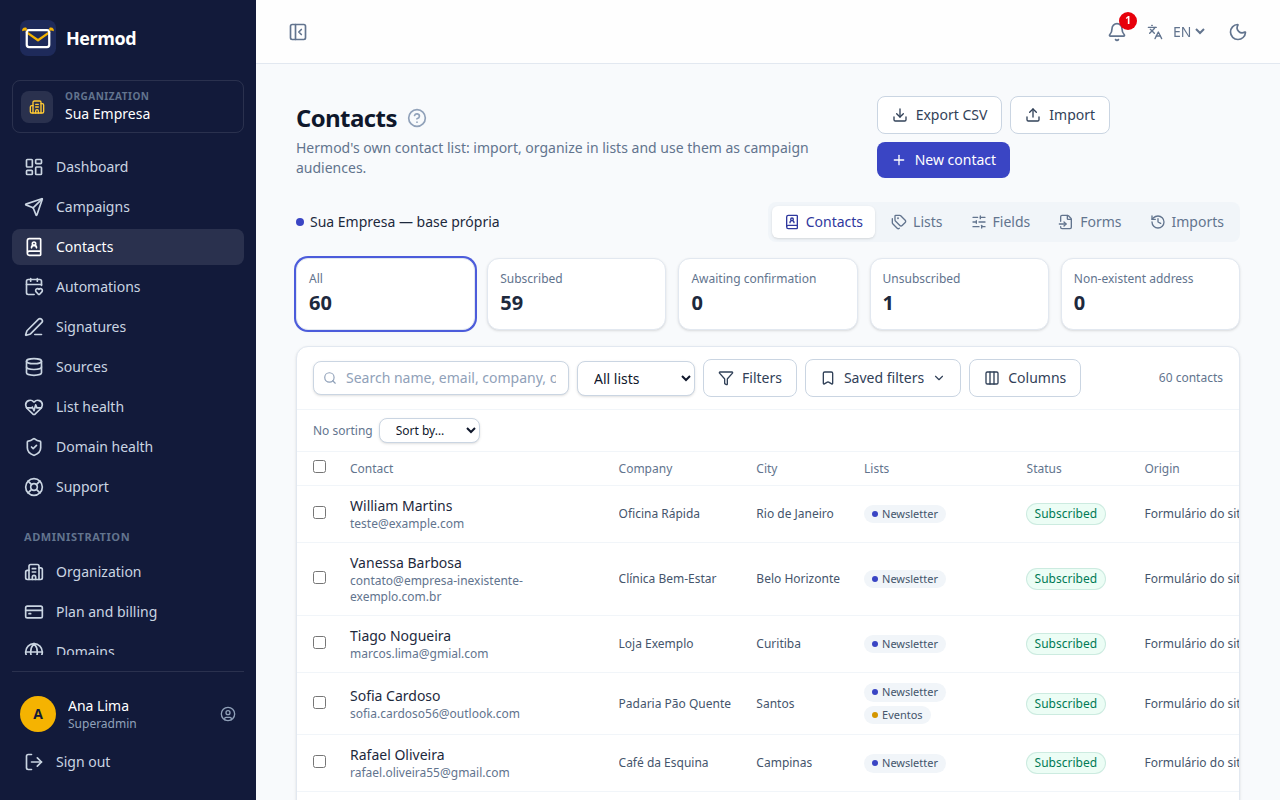
- Lists: a contact can be in several. Deleting a list doesn't delete its contacts.
- Filters: combine conditions with AND/OR (for example, city = Campinas AND birthday in October). Save the filters you use often: they become reusable audiences in campaigns.
- Columns and order: choose which columns show and sort by clicking the header.
- Export: download the filtered list as CSV when you need it.
Sign-up form
In Contacts you can also create a sign-up form and paste its code on your website. The person signs up, receives a confirmation email and only joins the list after confirming, with date and IP stored as proof of consent. It's the safest way to grow your list.