
Create, test and send a campaign
The five steps of the campaign editor, from audience to sending, with tests, scheduling and speed control.
In Campaigns, click New campaign, give it a name (internal only) and choose the contact source. The editor guides you through five steps. A step only unlocks the next one when it's complete, and Hermod tells you what's missing.
♪ No narration: the explanations appear on screen, with background music.
1. Setup
- Sender: who appears in "From:". Their domain must be verified.
- Signature: pick one or send without.
- Language: language of the automatic unsubscribe footer.
- Tracking: track opens and clicks. With tracking on, the footer tells the recipient and links to your privacy policy.
- Dolibarr: if the source is Dolibarr, you can log each send, click and unsubscribe in the contact's agenda.
2. Audience
Choose who receives it: lists, filters (including a filter saved on the Contacts screen) or the whole list. Hermod shows how many contacts were found and how many were removed automatically: unsubscribed, blocked and problem emails never receive.
3. Message
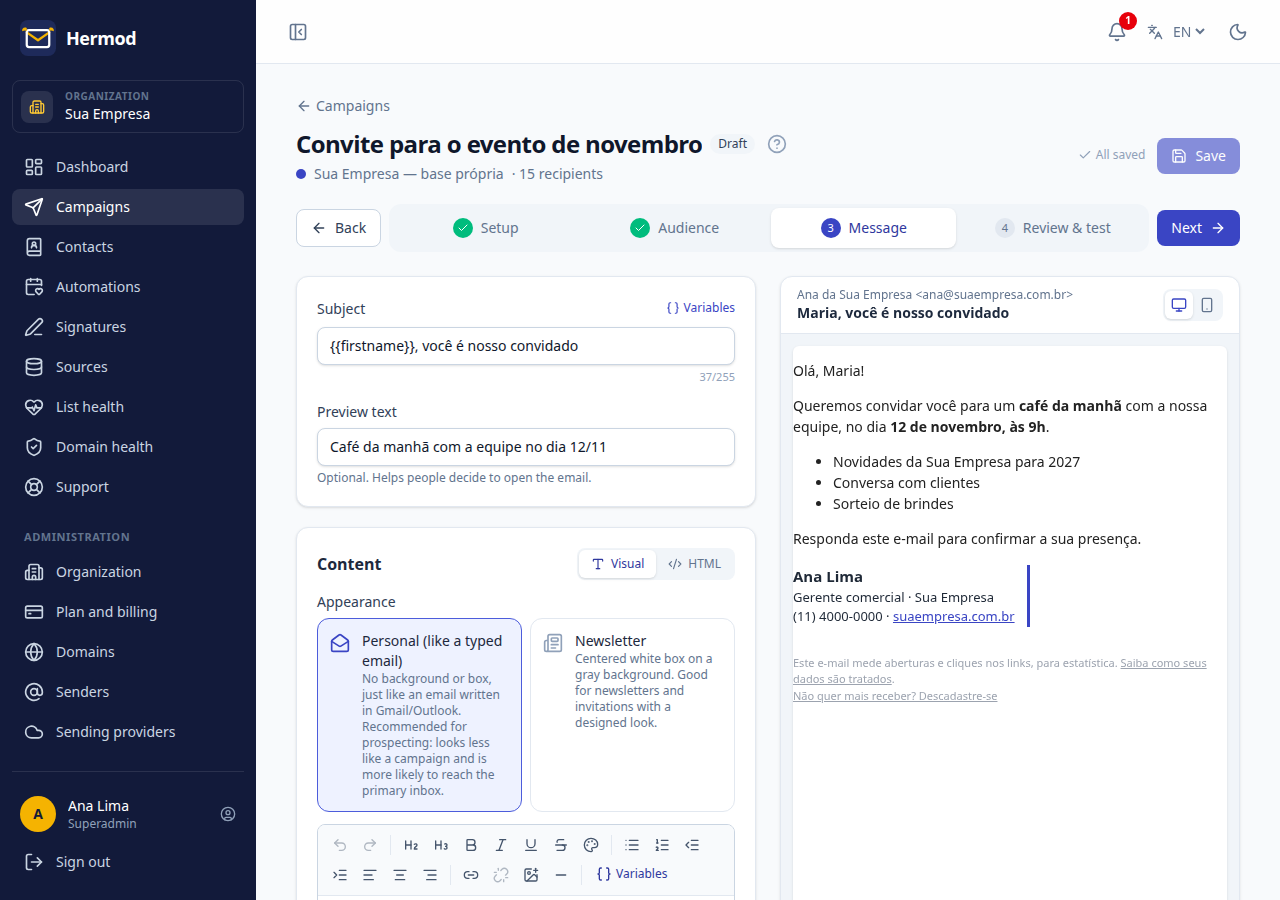
- Subject and preview text (shown next to the subject in the inbox).
- Content in the visual editor (bold, italic, lists, indent, colors, links and images), in the block editor (banner, columns, products and ready-made templates with your brand, see the block editor) or in HTML, if you already have the code.
- Links: select the text (or nothing) and click the link button. In the window, fill in the text to display (for example, "click here") and the address it goes to (for example, https://yourcompany.com). You can type just yourcompany.com, an email or a phone number: Hermod completes the address. To change or remove a link, click it and the same button.
- Variables personalize each email, like
{{firstname}}for the first name. Unknown variables are flagged before sending. - Appearance: "personal", like an email typed in Gmail (good for prospecting), or with a background and box, like a newsletter.
The footer with the unsubscribe link is added automatically to every email.
4. Review & test
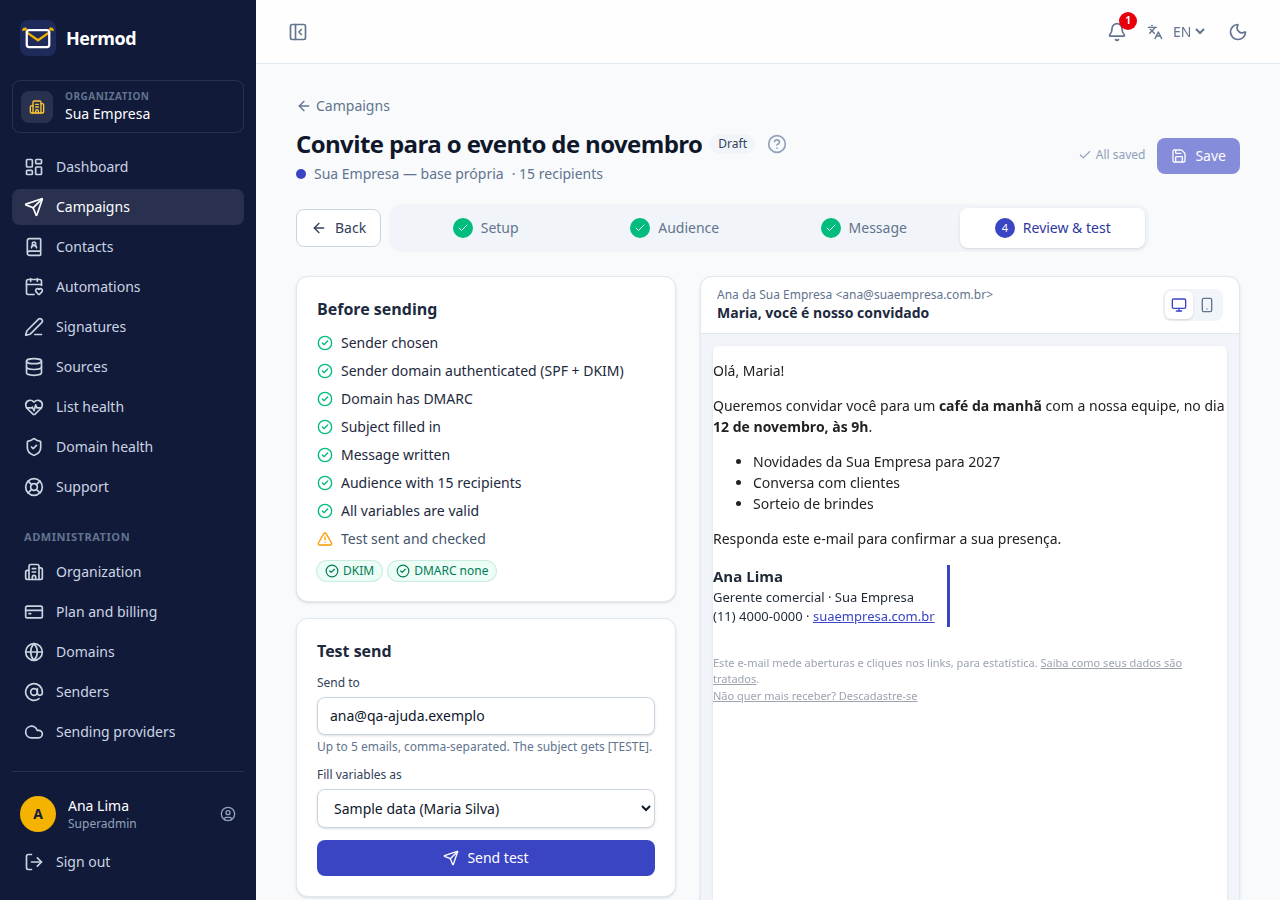
The checklist shows what's ready and what's missing: sender, authenticated domain, DMARC, subject, message, audience and variables. Items in red block sending.
Use Send test to send the campaign to up to 5 addresses (the subject gets [TESTE]). Open it on desktop and phone before moving on.
5. Sending
In Review & test, click Launch campaign:
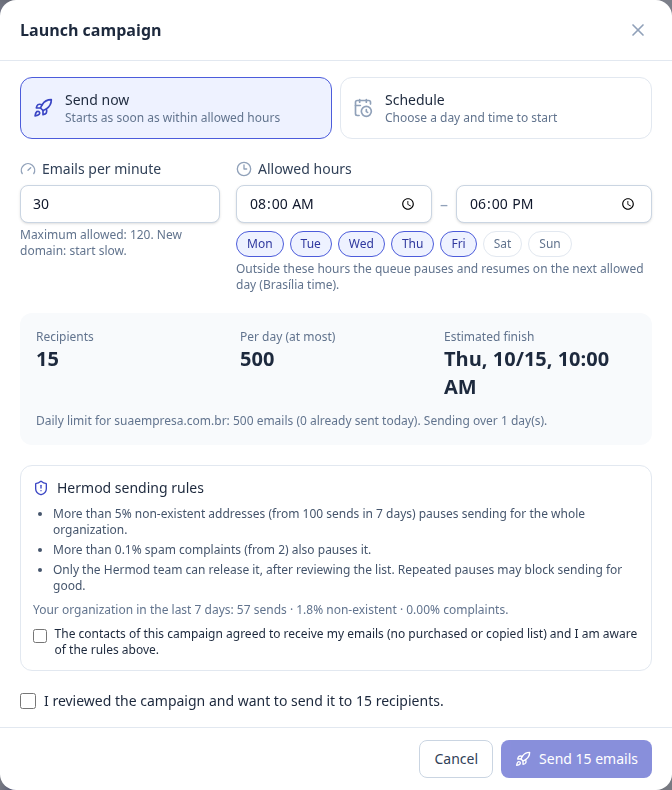
- Send now or Schedule for a day and time.
- Emails per minute: a new domain should start slowly.
- Allowed hours: days and hours when the queue may run (Brasília time). Outside them, the queue pauses on its own and continues at the next allowed time.
- Hermod shows the estimated finish, considering the domain's daily limit.
Before confirming, you state that the contacts authorized your emails and that you know the sending rules.
After sending
Open the campaign to follow deliveries, opens, clicks, unsubscribes and bounces, recipient by recipient. You can pause, resume or cancel while the queue runs, and duplicate the campaign to reuse it.