
Workflows: automated email sequences
Build the sequence once (trigger, emails, waits and paths) and Hermod sends at the right time for each contact.
A workflow is an automated sequence. A trigger puts the contact in the workflow, and they move through the steps on their own: get an email, wait a few days, take a different path depending on whether they opened it, join a list... Each contact moves at their own pace.
♪ No narration: the explanations appear on screen, with background music.
Workflows work with your own base (contacts stored in Hermod).
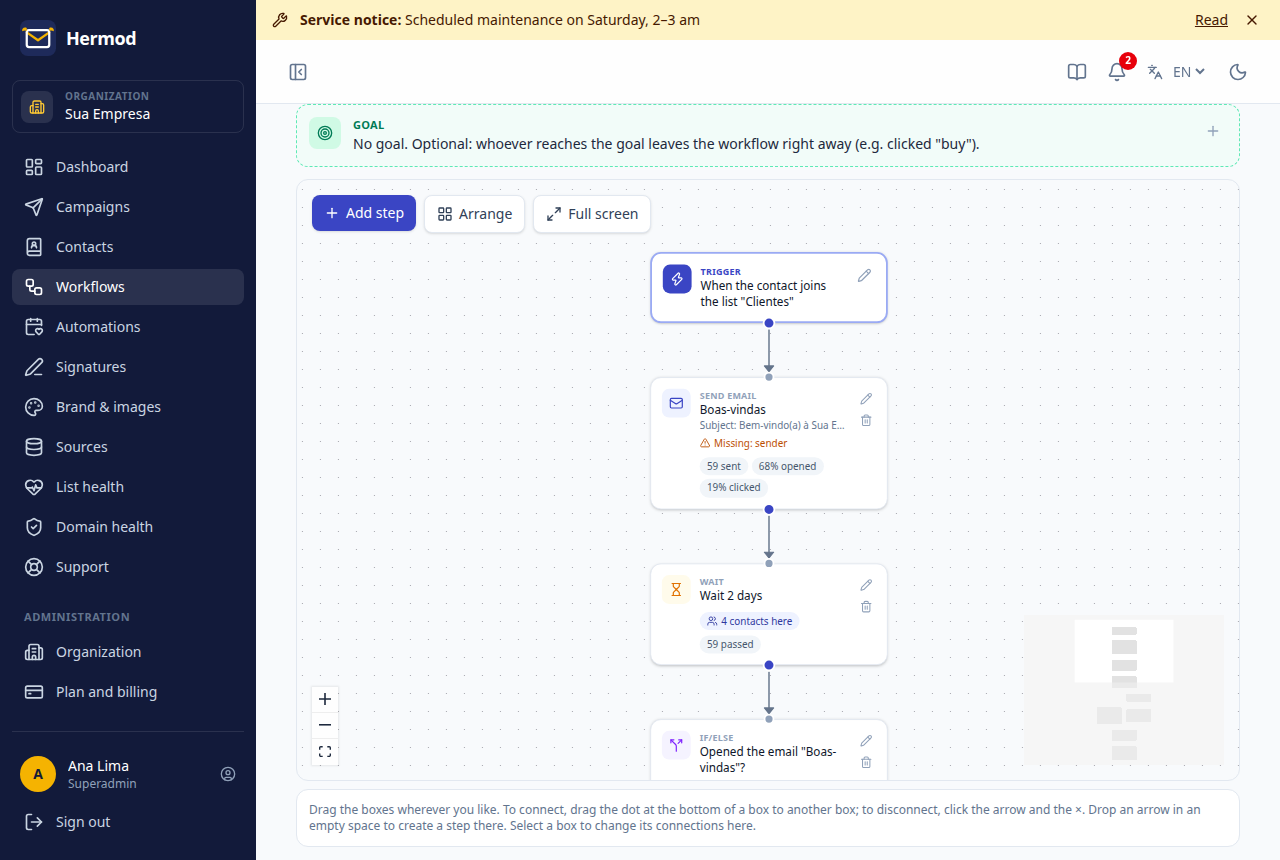
Create a workflow
- Open Workflows and click New workflow.
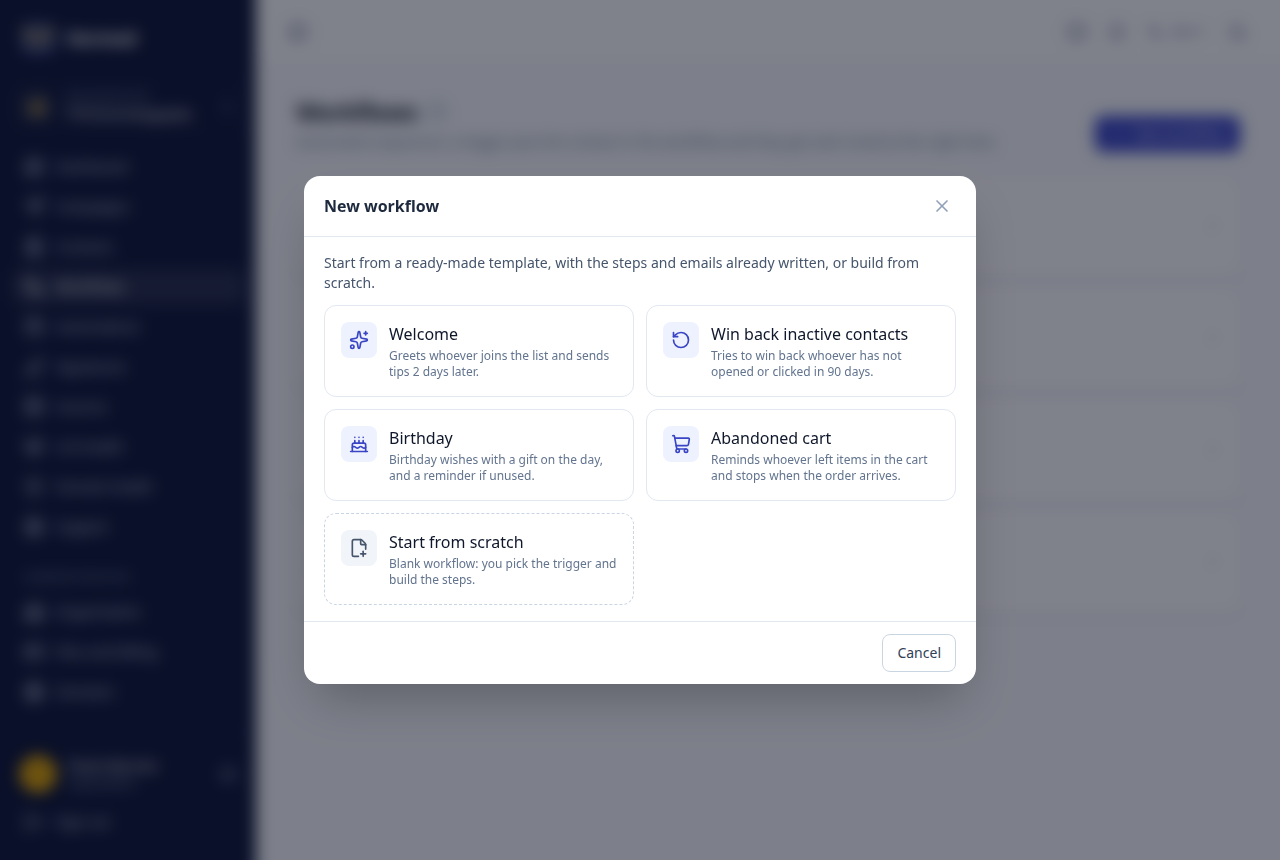
- Pick a ready-made template or Start from scratch.
- Give it a name, choose the own base and the trigger.
- Click Create and build the steps. Nothing is sent before you activate it.
Ready-made templates
Templates come with the steps and emails already written, in the language you choose (Portuguese, English or Spanish):
| Template | How it works |
|---|---|
| Welcome | Joined the list → welcome email → wait 2 days → those who opened get 3 tips; those who did not get a resend with another subject. |
| Win back inactive contacts | No opens or clicks in 90 days → "it has been a while" email → whoever does not click within 7 days is asked "do you still want our emails?". |
| Birthday | On the day, at 9 am → birthday wishes with a gift → whoever does not click within 3 days gets a reminder. Every year. |
| Abandoned cart | Your site reports through the API (cart_abandoned, with the cart link) → wait 1 hour → reminder → wait 1 day → last reminder. The goal is the order_placed event: whoever buys leaves the workflow right away. |
Before activating, open each email and replace the parts marked with ✎ (your company name, the gift, the tips...) and the sample link (suaempresa.com.br). While any of them is left, the email shows as incomplete and the workflow will not activate. Once created, the workflow is yours: you can change steps, waits and texts like in any workflow.
Triggers
| Trigger | When the contact enters |
|---|---|
| Joined a list | When they join the chosen list (import, form, API or on screen). |
| Confirmed subscription | When they confirm their email in a website form (one form or any). |
| New contact in the base | When they are added or imported. You can filter by origin (e.g.: "Trade show 2026"). |
| Campaign engagement | When they clicked a link (any or a specific one), opened, opened and didn't click within X days, or didn't open a campaign from the base within X days. You can include those who did it before activation. |
| Became inactive | Received emails from the base for X days (default 90) and didn't open or click any. Checked once a day. Good for reactivation. |
| Became a hot lead | Passed X interest points (the same score as the Dashboard). Checked every 15 minutes. Good for notifying sales. |
| Field changed | When a contact field changes, or becomes a value (e.g. category became "Customer"). Counts changes made on screen, through the API, on import or by another workflow. |
| API event | When your site, ERP or n8n tells Hermod that something happened (e.g.: pedido_feito, carrinho_abandonado). The contact enters within 1 minute and can enter again on every event. See Connect other systems. |
| Contact date | On the birthday, or X days before/after the base's custom date, at the chosen time. |
| Campaigns only | When a campaign chooses this workflow (see below). It doesn't run on its own. |
Build the workflow on the canvas
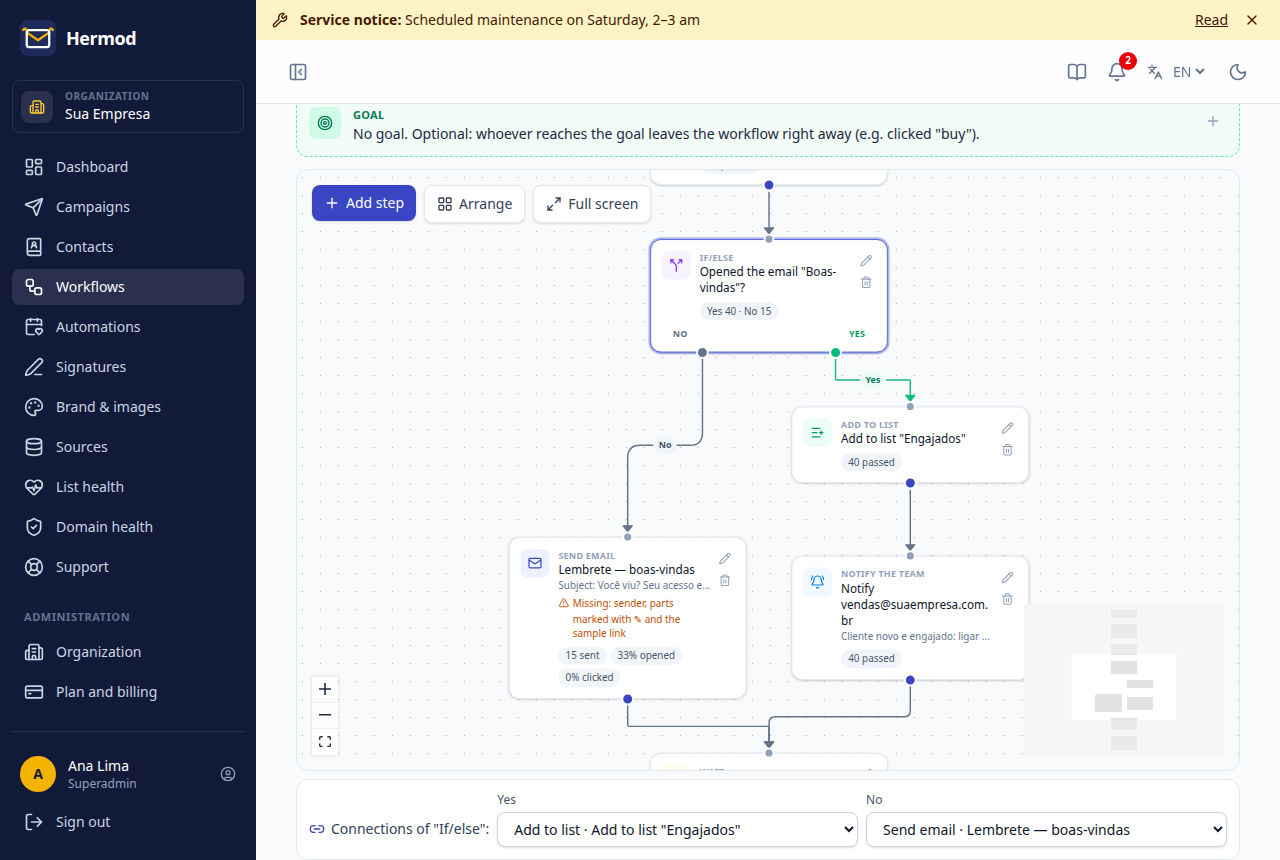
Each step is a box on a free canvas, connected to the others by arrows. The trigger box is the start.
- Add: click Add step. If a box is selected, the new step goes below it, already connected. Another way: drag the dot at the bottom of a box and drop it in an empty space. The menu opens and the step is created there, connected.
- Move: drag the box anywhere. The position is saved.
- Connect: drag the dot at the bottom of a box to the next box. If/else and Wait until have two dots, one for each path (Yes/No or Happened/Time's up).
- Disconnect: click the arrow and the ×, or select the arrow and press Delete.
- From the panel: select a box and, in the Connections panel below the canvas, choose where each exit goes. It is the easiest way on a phone.
- Arrange lays the boxes out top to bottom. Full screen gives more room for big workflows.
Two paths can end at the same step, and a path can go back to an earlier step, like a reminder that repeats until the person opens it. So that emails do not go out nonstop, every loop must go through a Wait step: without it, Hermod does not let you connect.
A step with no arrow reaching it is marked as loose. Nobody gets there, and the workflow cannot be activated while there is a loose step: connect it or delete it.
Changing connections in an active workflow applies right away: whoever is at a step follows the new path from then on.
Steps
The step types are:
- Send email: opens the same editor as campaigns (sender, signature, message and test send).
- Wait: minutes, hours or days. After an email, the wait starts when it goes out.
- Wait until: waits for something to happen (opened or clicked an email, joined a list, a field), with a time limit. There are two paths: Happened and Time's up. E.g.: "wait until they click the offer email, at most 3 days".
- If/else: two paths, Yes and No. The condition can be: opened an email, clicked a link, is on a list, a contact field (e.g.: City is Campinas) or received an event through the API. Each path goes wherever its arrow points; with no arrow, the workflow ends there for whoever takes it.
- Add to list / Remove from list.
- Change field: saves a value in a contact field (e.g. category = "Engaged").
- Start another workflow: puts the contact in another active workflow of the same base, starting at the first step.
- Call webhook: notifies another system (CRM, n8n, Zapier) with the contact's data. See below.
- Notify the team: sends an internal email with the contact's name, email, company and phone (e.g.: for sales to call).
- End the workflow.
Use in a campaign
A workflow can also be the "script" of a campaign:
- Create the workflow (the Campaigns only trigger is the right one) and write the emails.
- Create the campaign as usual: Settings (sender and signature) and Audience.
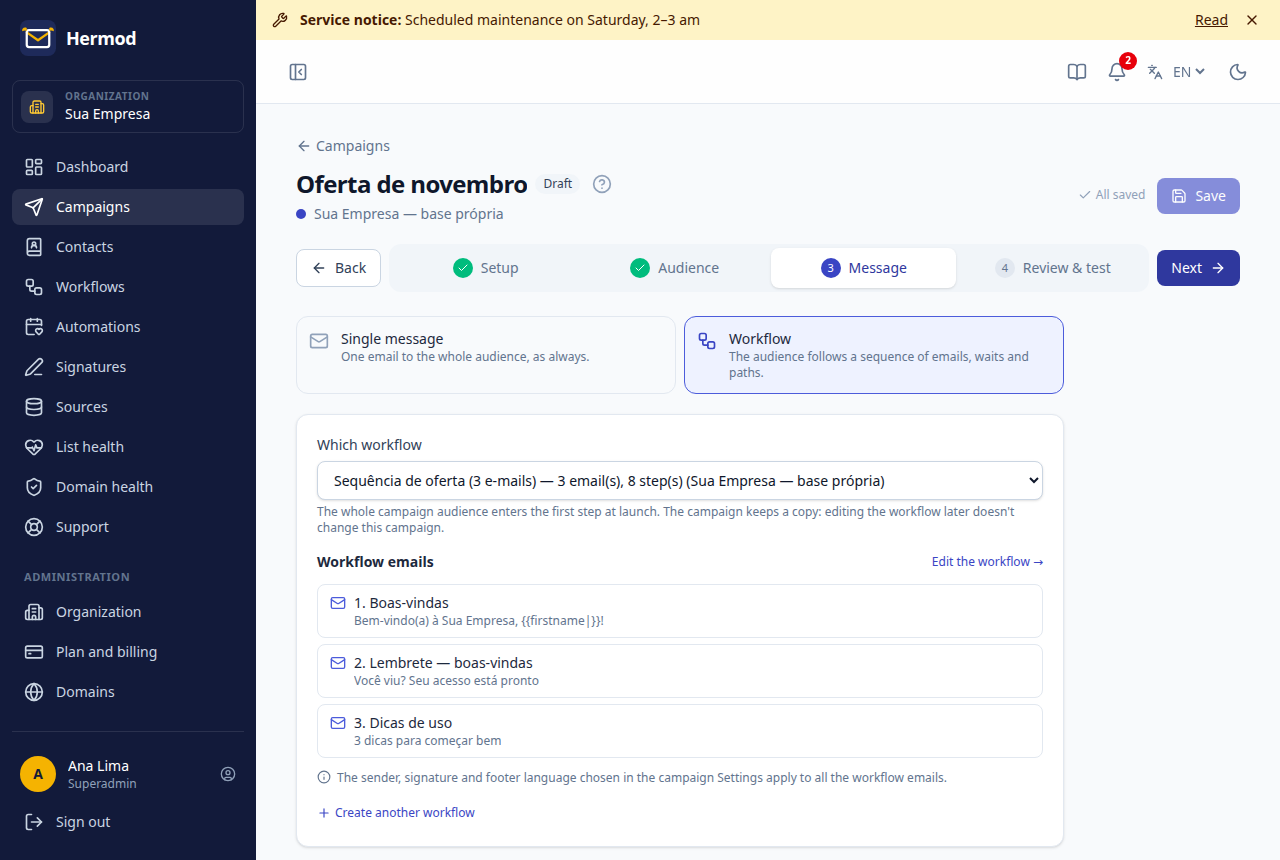
- In the Message step, choose Workflow and point to the workflow.
- In Review, see each email and send a test (one of each email goes out). Then launch.
The whole audience enters the first step and each contact follows the workflow at their own pace. The campaign shows how many are in the workflow and the numbers of each email; pause and cancel are in the campaign.
It works with any source. In Dolibarr and WordPress, list steps are skipped (lists belong to your own base) and conditions use the data that came from the source.
Connect other systems
API event (your system tells Hermod)
- In Profile → API keys, create a key for your own database.
- Create a workflow with the API event trigger and name the event, e.g.
pedido_feito. - Your site, ERP or n8n calls the API on every event:
POST https://app.hermod.digital/api/v1/events
Authorization: Bearer hmd_...
Content-Type: application/json

{
  "event": "pedido_feito",
  "email": "ana.lima@suaempresa.com.br",
  "data": { "pedido": "1234", "valor": "R$ 199,90", "link": "https://loja.suaempresa.com.br/pedido/1234" }
}
The response says how many active workflows wait for this event ("workflows": 1). If it says 0, check the name. A contact not yet in the database is created when the call includes an origin ("origin": "Online store"); without it, the response is 404.
Fields in data become variables in the flow emails: {{event_pedido}}, {{event_valor}}, {{event_link}}. You can set a default: {{event_cupom|no coupon}}. In the preview they show as [event_pedido]. The workflow screen shows how many events arrived in the last 30 days, so you can check the integration is sending.
Call webhook (Hermod tells your system)
The Call webhook step sends a JSON POST to the chosen URL, with the contact, the flow and the data of the event that brought the contact in:
{
  "type": "workflow.step",
  "deliveryId": "4821-hk9x2a",
  "sentAt": "2026-10-17T14:05:00.000Z",
  "workflow": { "id": 12, "name": "Pedido feito" },
  "step": "hk9x2a",
  "contact": { "email": "ana.lima@suaempresa.com.br", "firstname": "Ana", "company": "Sua Empresa" },
  "event": { "name": "pedido_feito", "data": { "pedido": "1234", "valor": "R$ 199,90" } }
}
- Use Test to send a sample contact (marked
"test": true). - A 2xx response means "delivered". If it fails, Hermod retries after 1 min, 5 min, 30 min, 2 h and 6 h. After that the contact moves on, and the step shows how many were not delivered.
- Public addresses only (
http://orhttps://). Redirects are not followed. - Every call carries the
X-Hermod-Signature: t=<time>,v1=<signature>header, an HMAC-SHA256 of<time>.<body>with the workflow secret (shown in the step). Check the signature to be sure the call came from Hermod:
// Node.js: check the signature (secret = the one shown in the step)
const crypto = require('crypto');
const [t, v1] = req.headers['x-hermod-signature'].split(',').map((p) => p.split('=')[1]);
const expected = crypto.createHmac('sha256', secret).update(`${t}.${rawBody}`).digest('hex');
const ok = crypto.timingSafeEqual(Buffer.from(expected), Buffer.from(v1));
Workflow goal
Right below the trigger you can set a goal, such as clicked an offer email, joined the "Customers" list or received an event through the API (e.g. order_placed, sent by your site after the contact entered the workflow). Whoever reaches the goal leaves the workflow right away, even in the middle of a wait, and shows up as "reached the goal" in the numbers. That way nobody gets the sales sequence after they have already bought.
Activate, pause and follow up
- Activate: Hermod checks that each email has a sender, subject and message, and that the sender's domain is ready. If something is missing, it shows what.
- Pause: nobody moves forward and no email goes out until you resume. Whoever fires the trigger during the pause does not enter.
- Each step shows how many contacts are there now and, for emails, how many were sent, opened and clicked. Click "contacts here" to see who they are.
- The Contacts tab shows who is in the workflow, who finished and who left (and why), with each one's history. You can remove someone from the workflow.
- You can edit an active workflow. Changes apply to each contact's next steps, and an edited email applies to the next sends.
Workflow report
The Report tab shows how the workflow did over a period (last 7, 30 or 90 days, or dates you choose):
- How many entered, completed, reached the goal and left before the end, as a percentage of those who entered, and how many are in the workflow now.
- Daily chart (Brasília time) with entries, completions and exits. The "Table" button shows the same numbers.
- Step by step: how many contacts went through each step (the bar shows the funnel), the result of each one (emails sent, opened, clicked, unsubscribes and bounces; yes and no for conditions; webhooks delivered) and who left the workflow at that step.
- Why they left: the reasons (unsubscribe, bounced email, block list...) with the number of contacts. "See contacts" opens the Contacts tab already filtered by that reason.
- Export CSV: downloads the period's report to open in Excel or Google Sheets.
Numbers count what happened within the period: entries by the date the contact entered, completions and exits by the date they left, emails by send date. That is why a step can show more contacts than the period's entries: those who entered earlier also go through it.
Workflow used by campaigns: the report adds up the contacts of every campaign that used the workflow. Pick a campaign in the list next to the period to see only that one. Each campaign's contacts are in the campaign itself ("See the workflow and contacts" button in its progress).
Rules that always apply
- Whoever unsubscribes, marks as spam or has the email bounced leaves the workflow right away.
- At most 7 emails per contact in 7 days, adding up workflows and campaigns. Beyond that, the email is postponed.
- Emails only go out within the workflow's sending window (Settings tab; Brasília time).
- In Settings you choose whether the contact can go through the workflow again: never, always, or after X days.
- Emails count toward the plan and follow the same sending rules as campaigns.