
Block editor and ready-made templates
Build emails with banners, columns, products, coupons and social media, starting from templates that already carry your brand.
In the campaign's Message step, the content can be made in three ways:
- Visual: formatted text, like an email written in Gmail. Good for personal messages and prospecting.
- Blocks: a showcase email built from ready pieces (banner, columns, products, buttons). This article is about it.
- HTML: for those who already have code ready from somewhere else.
An email built with blocks looks right in Gmail, Outlook, on phones and in dark mode. Hermod writes the code for you.
Start from a template
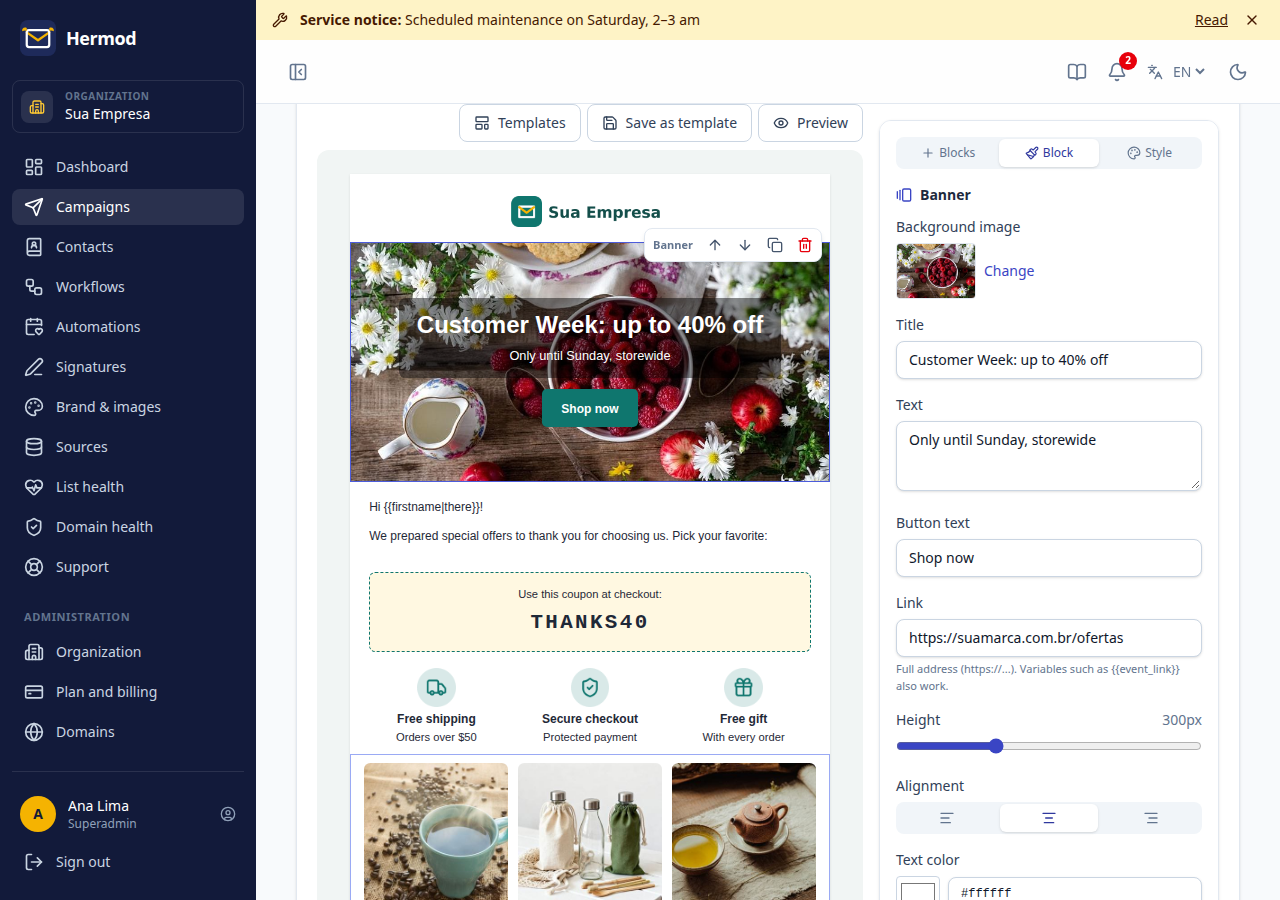
When you choose Blocks, the template gallery opens. Templates already come with your company's logo, colors, social media and address, set up in Brand & images:
- Newsletter, Promotion / offer, Launch / news, Event or webinar invitation
- Downloadable content, Announcement, Welcome, Holidays and special dates
- Blank: only the header and footer with your brand
If you had already written something in the visual editor, use Use what I already wrote: headings, text and images become blocks.
Build and edit
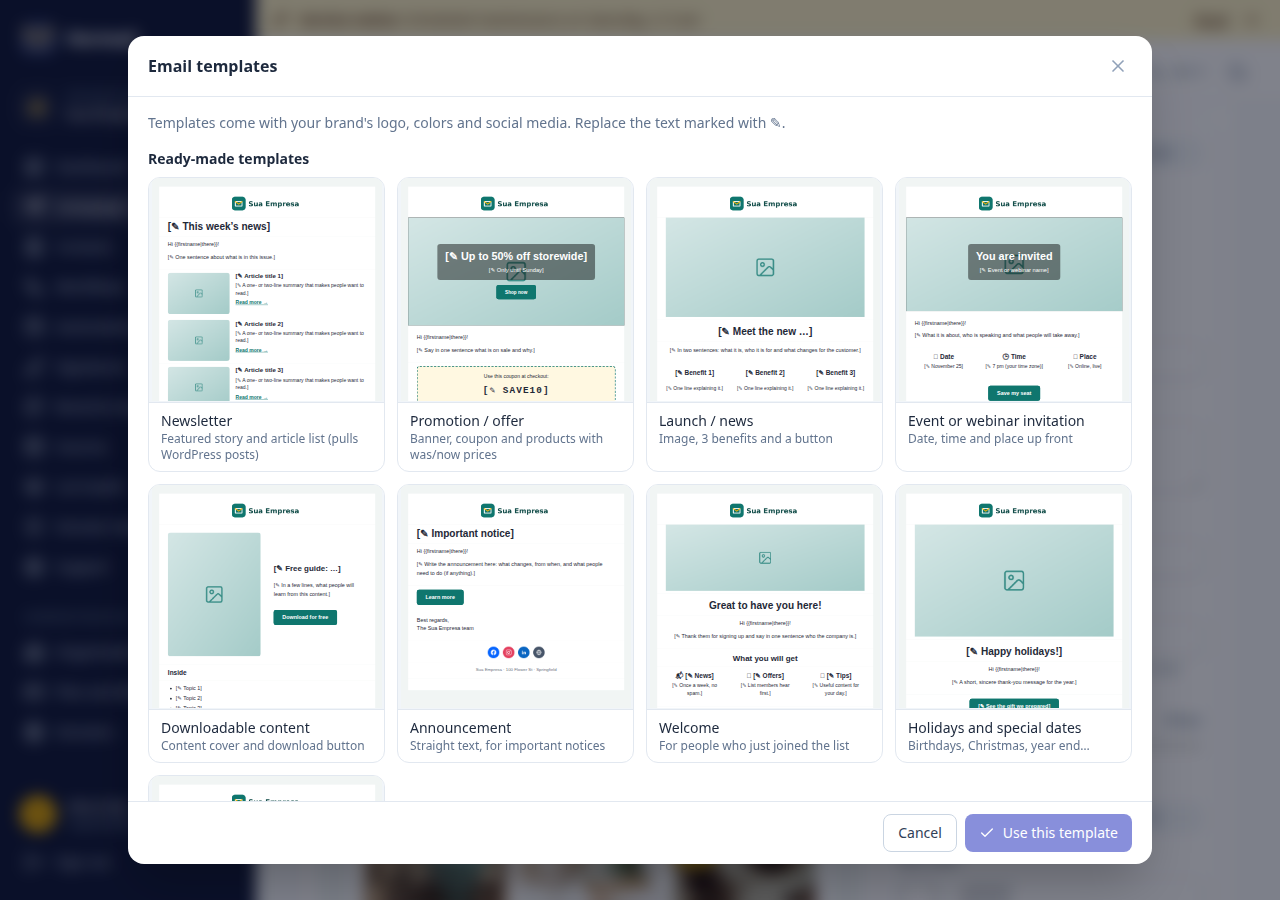
- Add: in the Blocks tab on the side, click a block (it goes below the selected one) or drag it to the right place.
- Edit: click the block. Headings and text are typed directly in the email. The other options (link, colors, size, spacing) are in the Block tab.
- Move, duplicate or delete: with the buttons above the selected block.
- Undo and redo: with the arrows above the email, or Ctrl+Z and Ctrl+Y.
- Style: font, colors, rounded corners and width of the whole email.
- Phone: the phone button shows how it looks on a small screen. Columns and products stack. Each block can be hidden on phones.
- Zoom: next to the phone button, − and + make the email bigger or smaller on screen (50% to 200%), and clicking the percentage goes back to 100%. Fit makes the email fill the free width, handy on large monitors. Zoom is only for editing: the email that goes out does not change.
The available blocks are: logo, heading, text, image, button, banner (image with text and a button on top), columns, products (up to 3 side by side, with was/now prices), articles, video, coupon, icons with text, divider, space, social media and footer.
Images
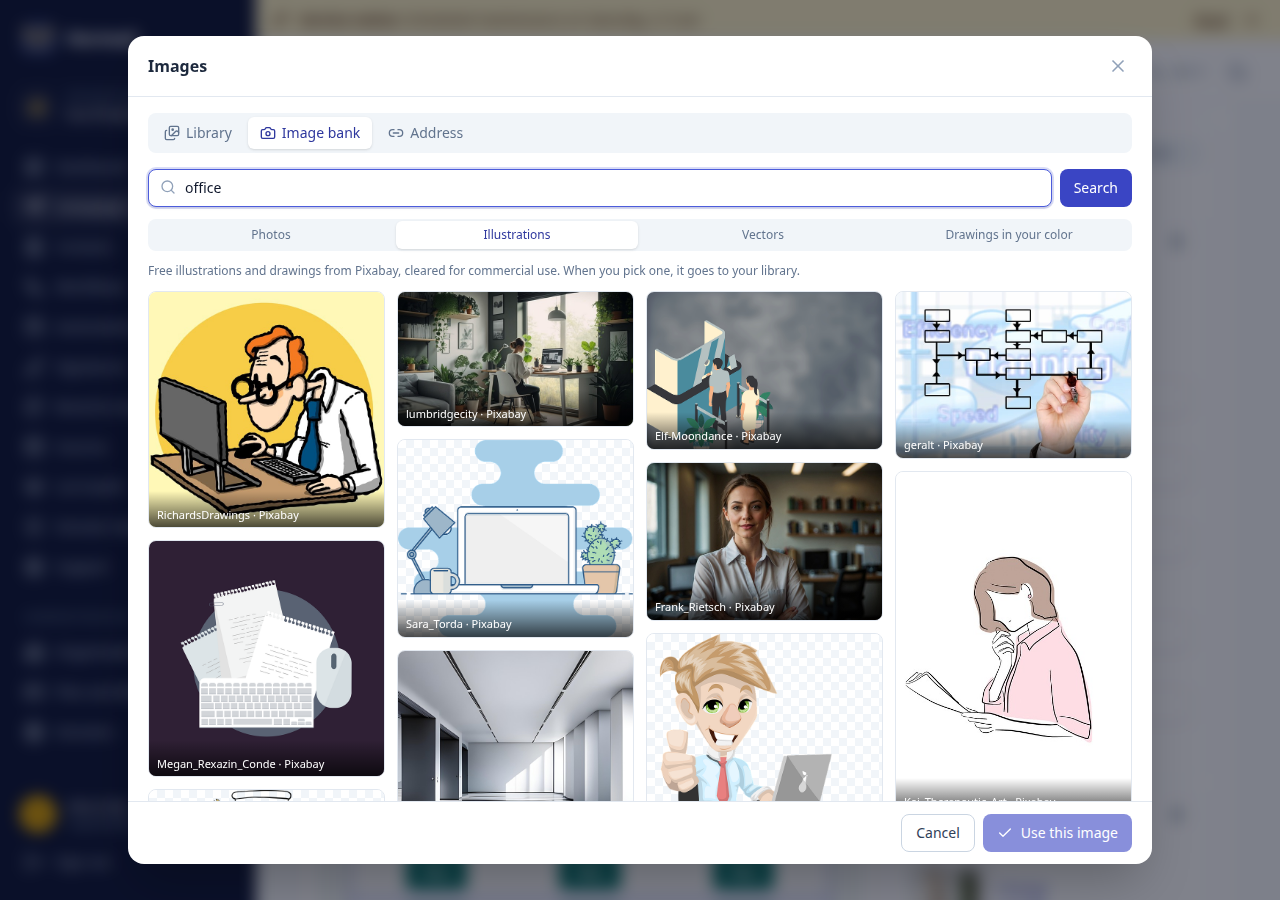
Click Choose image in a block. The images window has:
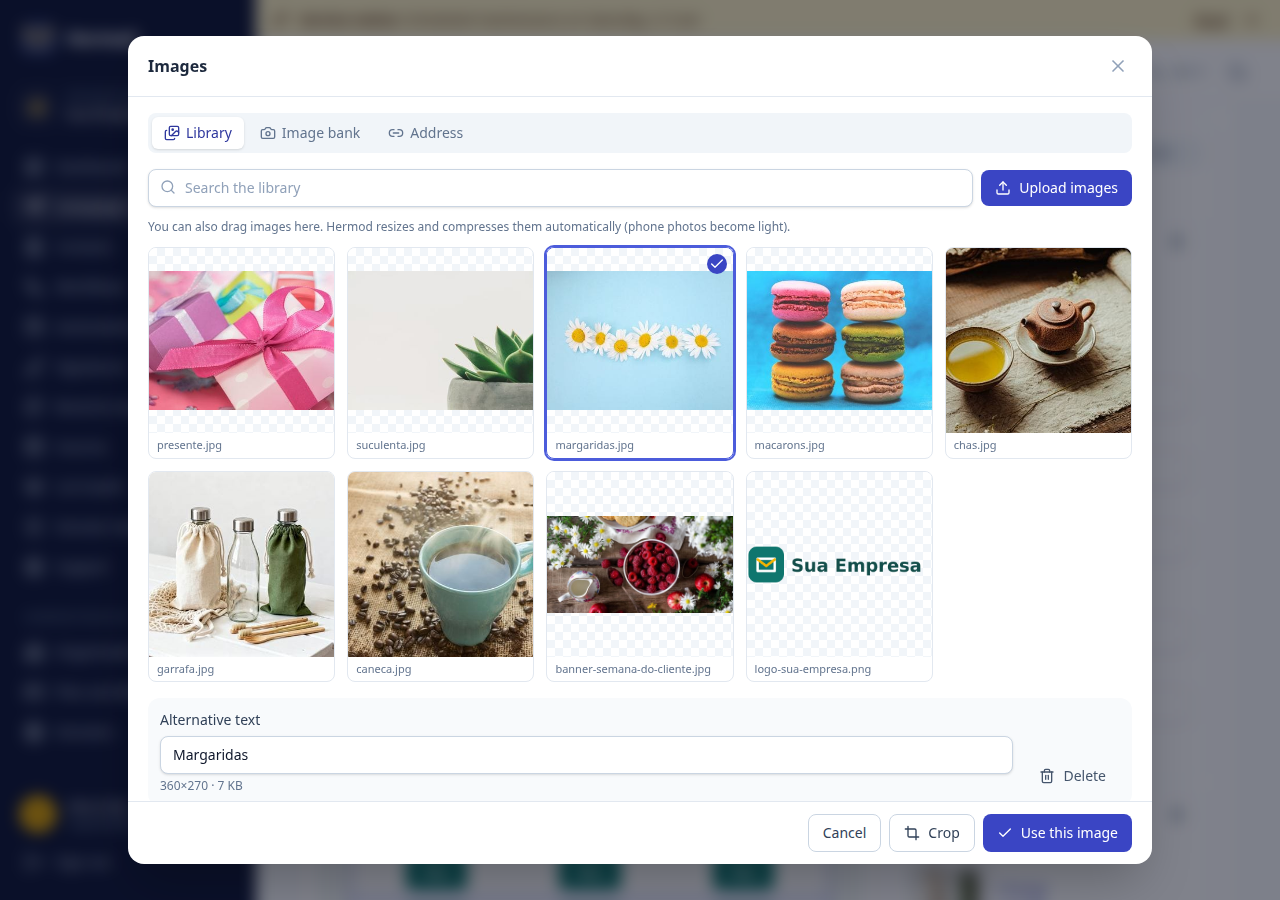
- Library: your organization's images. Upload from your computer (or drag into the window), search by name and write the alternative text, shown when the image does not load.
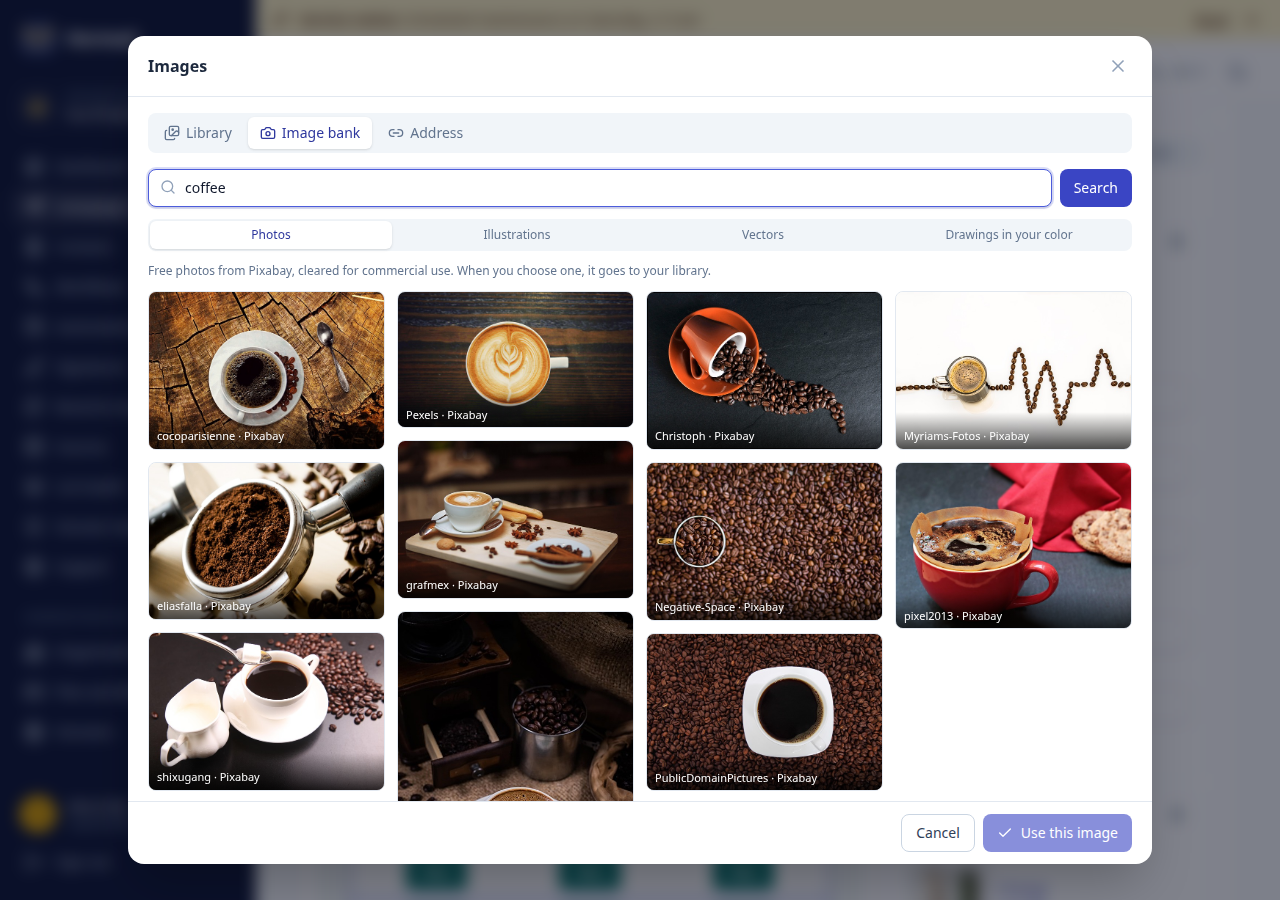
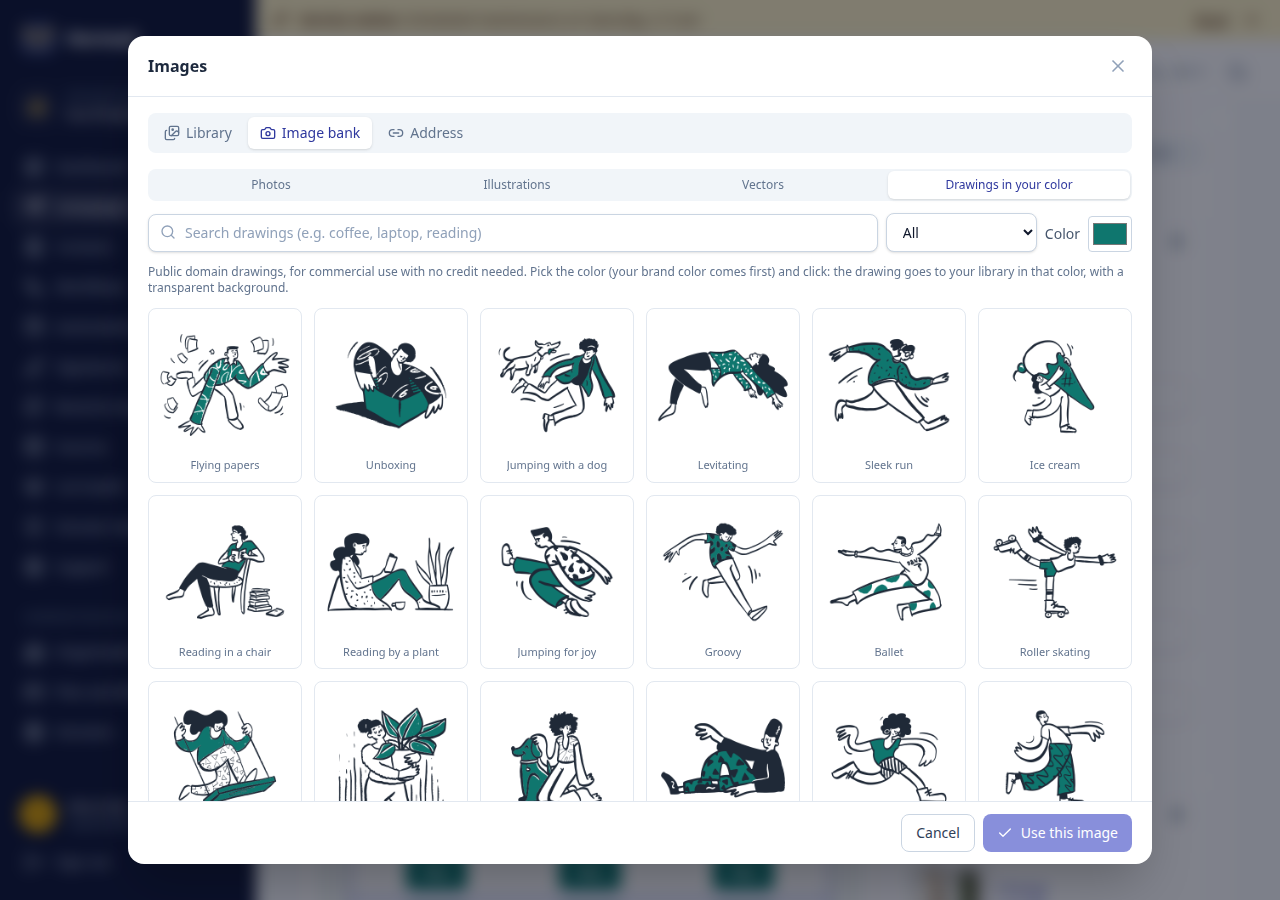
- Image bank: free photos, illustrations and vectors (drawings) for commercial use. Pick the type, search, for example, "coffee" or "office", and click the image. It goes to your library with the author's credit. Illustrations and vectors usually have a transparent background. Drawings in your color has drawings of people (in action and portraits) that already come in your brand color: change the color if you like and click the drawing.
- Address: bring an image from the internet by its address. Only use images you have the right to use.
Hermod resizes and compresses each image on its own: a 5 MB phone photo ends up at a few hundred KB, and light emails arrive faster. You can also crop (free, square, 16:9, 2:1 or 3:4).
Icons
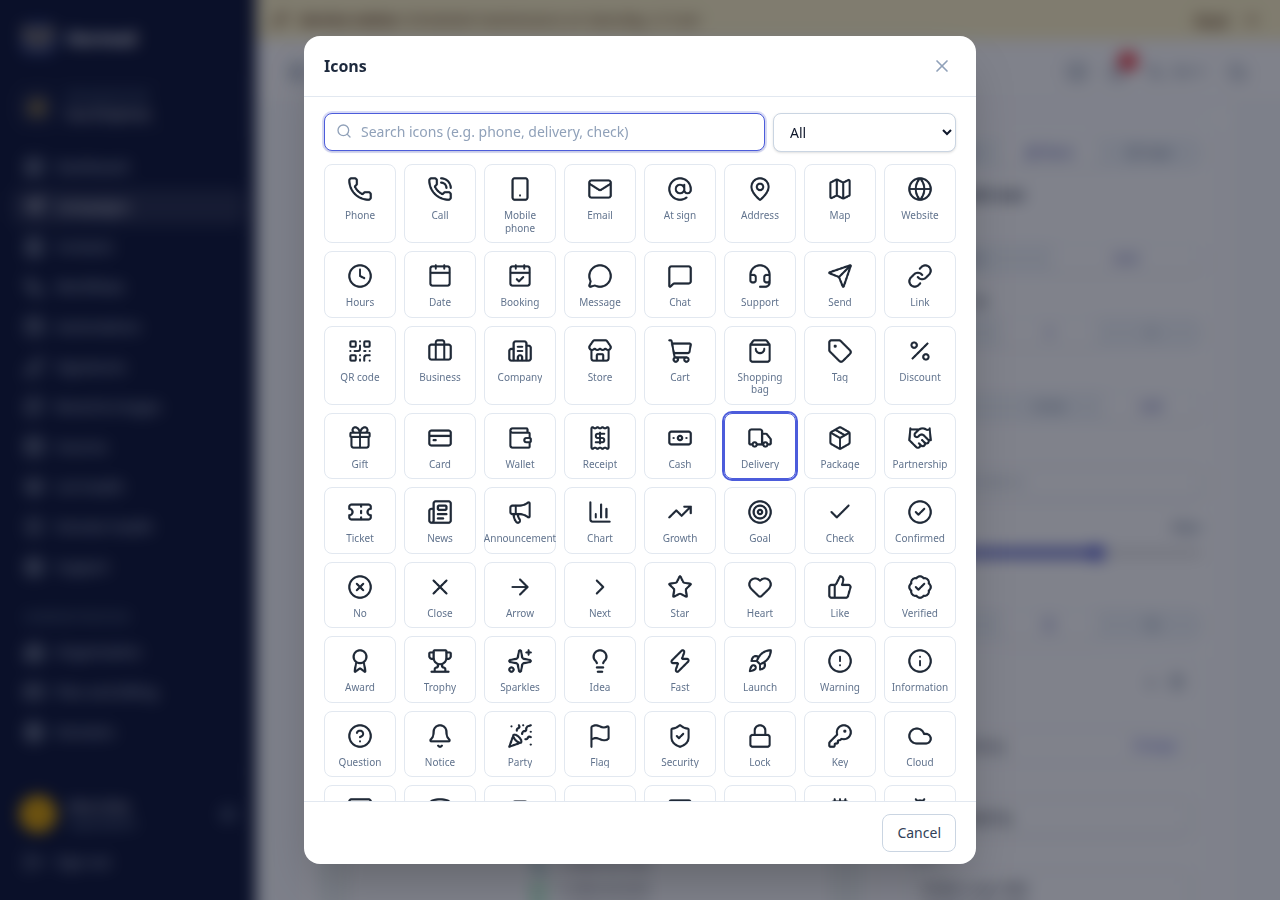
Small icons (phone, WhatsApp, email, address, clock, check, delivery, security...) make the email easier to read. There are more than 100 in 6 groups, searchable by name. They become light, sharp images that show in Gmail, Outlook and on phones. Brand icons (WhatsApp, Instagram, Pix...) use the brand color, and the others use the button color. You can change the color in each block.
There are three ways to use them:
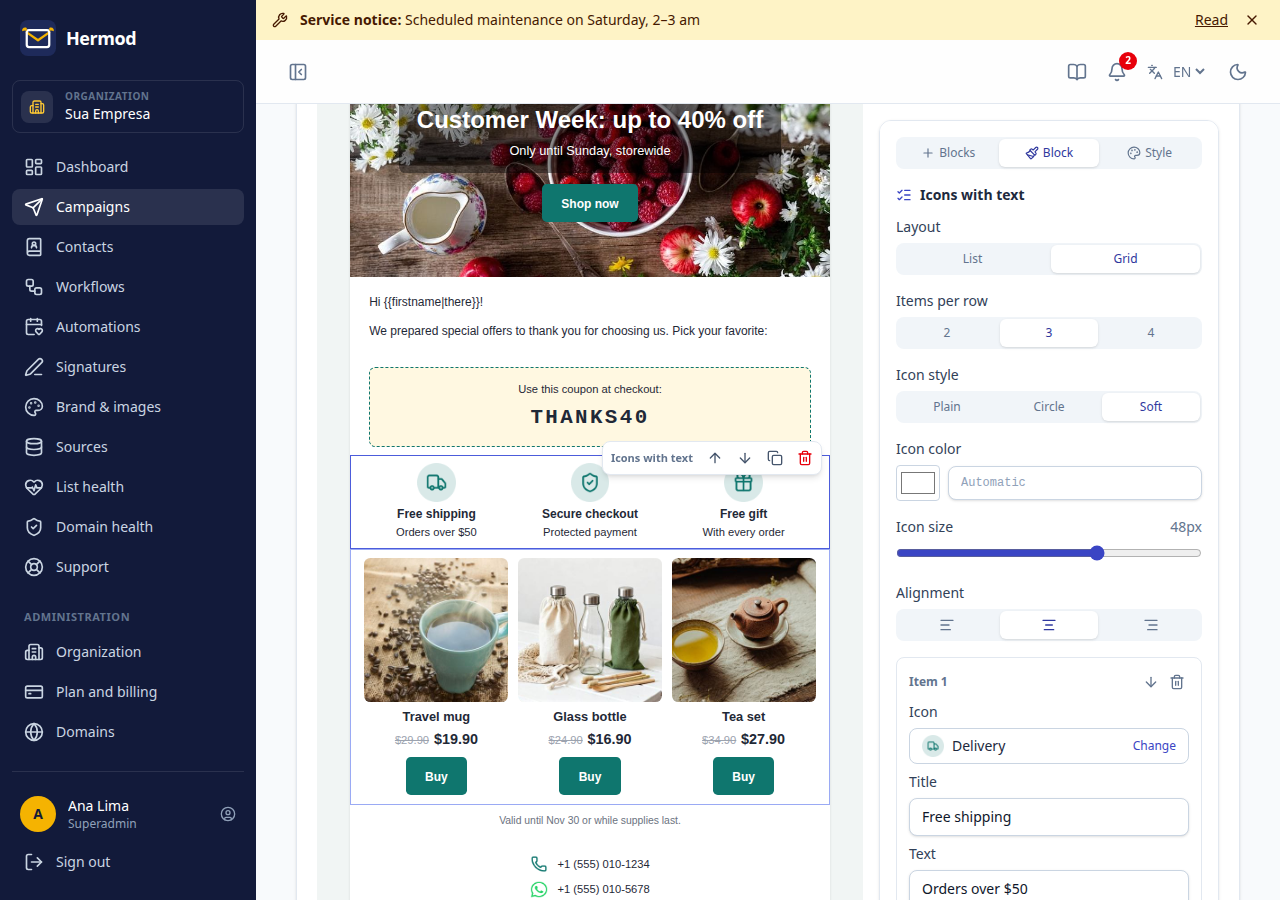
- Icons with text block: a list (icon next to the text, like the company contacts) or a grid (icon on top with a title and text, like a product's benefits, 2 to 4 per row). Each item can have a link, for example
tel:+1...to call,https://wa.me/1...to open WhatsApp ormailto:to write an email. - In the button: in the Block tab, under Icon, choose an icon to go before or after the button text, like the WhatsApp one in "Chat on WhatsApp".
- Inside the text: with the text open for editing, click the smiley button on the formatting bar, pick the icon, style, color and size, and click Insert icon.
The styles are: Plain (just the drawing), Circle (white drawing in a colored circle) and Soft (colored drawing in a light circle).
Preview and content check
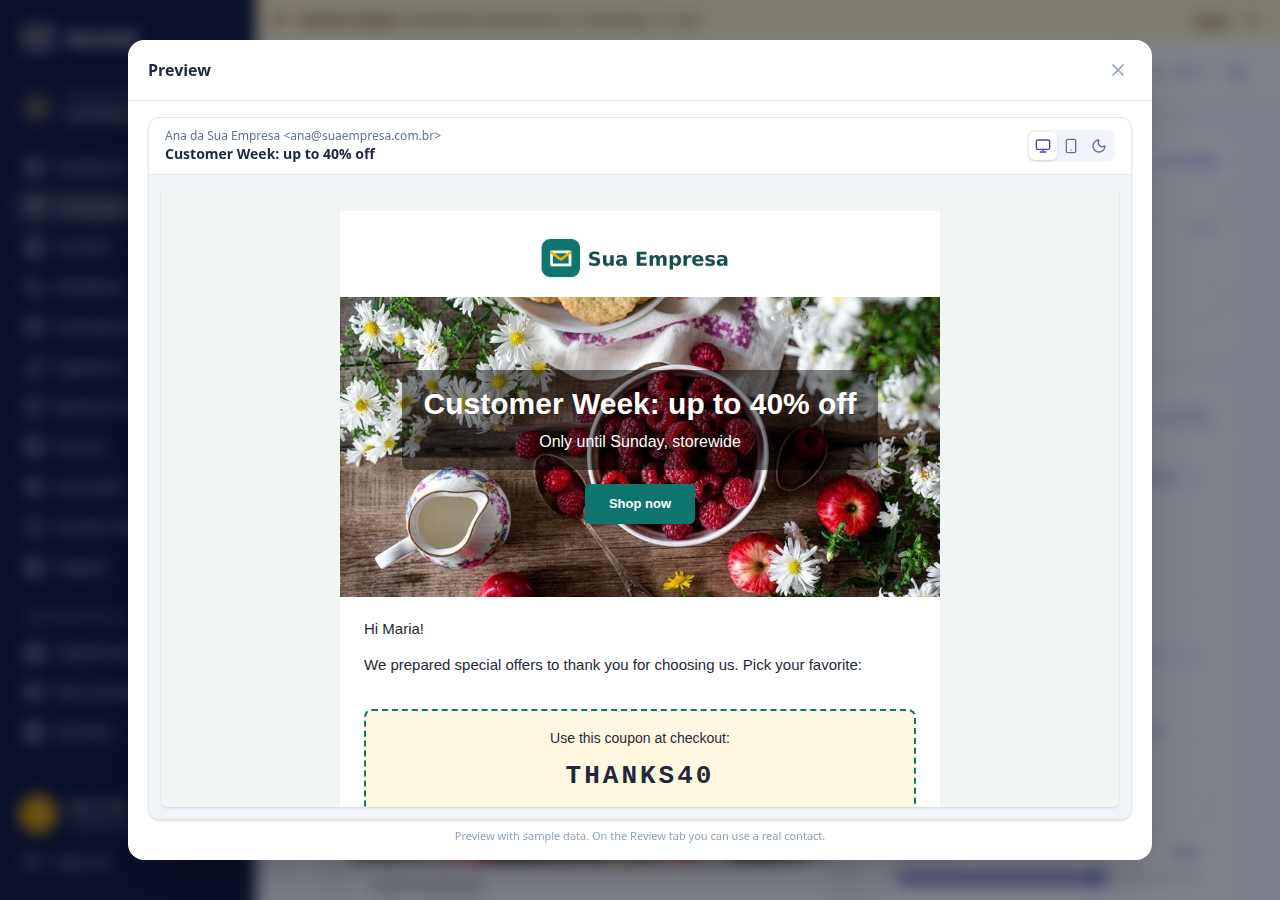
The Preview button shows the email as it will go out, with the signature and the unsubscribe footer, on desktop, on phones and in dark mode (as in apps that invert colors).
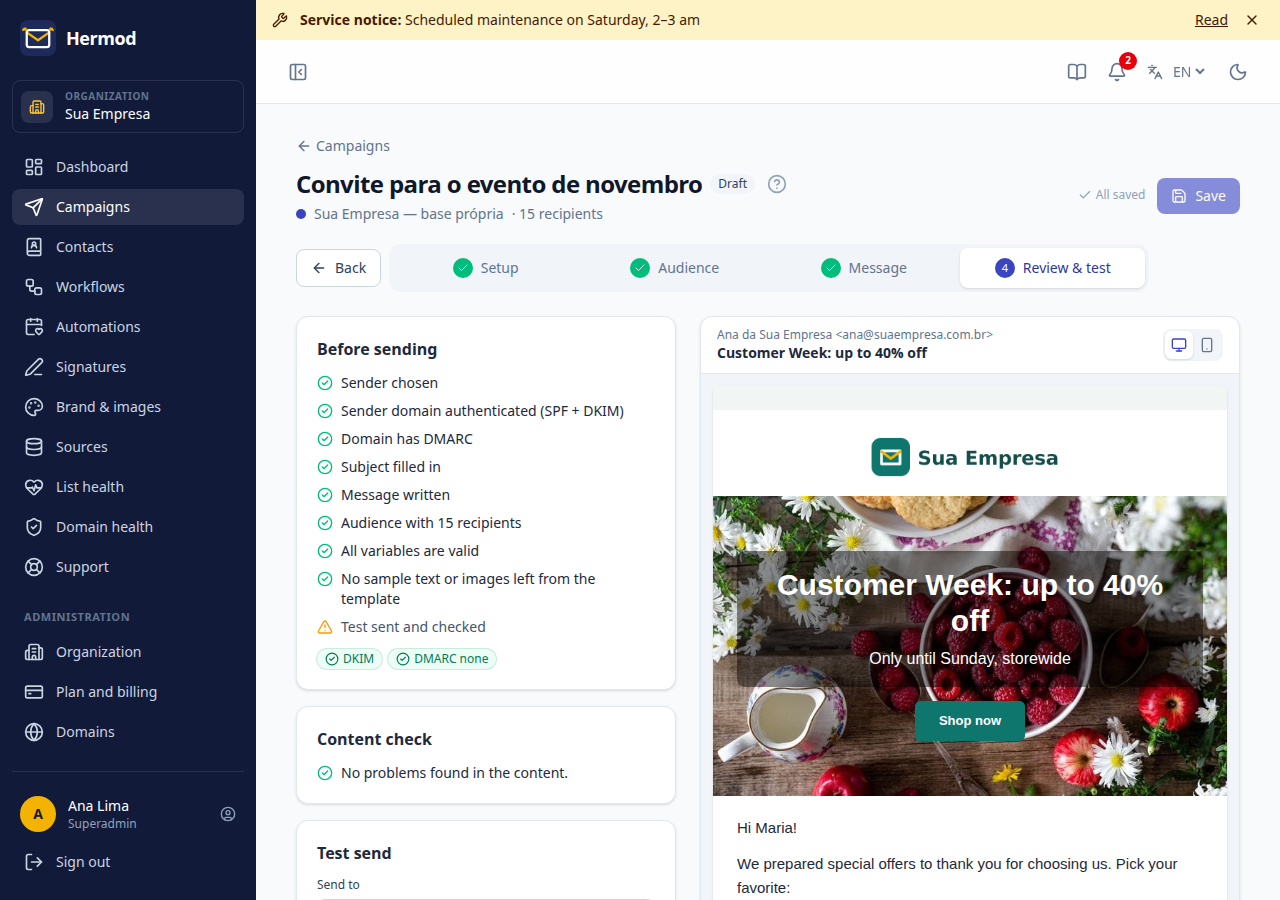
In Review, the Content check warns you before sending:
- forgotten ✎ text or sample images (blocks sending);
- email over 102 KB, which Gmail clips (hiding the unsubscribe link);
- email that is almost only images, or many images for little text;
- image without alternative text, button without a link and links that will not open.
Save as template
Like the design? Click Save as template. It shows up in the gallery for everyone in the organization, under Your team's templates. To rename or delete, go to Brand & images, Saved templates tab.
Switching editors
You can leave blocks at any time. In HTML, the email becomes the code that would be sent. In Visual, text, headings, images and buttons stay, but columns, banners and background colors are lost. Hermod asks before switching.